Assistive Technology Testing: Screen Readers, Zoom, Contrast & Motion
This is part 4 of the Accessibility Testing series. It covers how to test your pages with screen readers, zoom, high contrast mode, and reduced motion preferences.
VoiceOver (macOS)
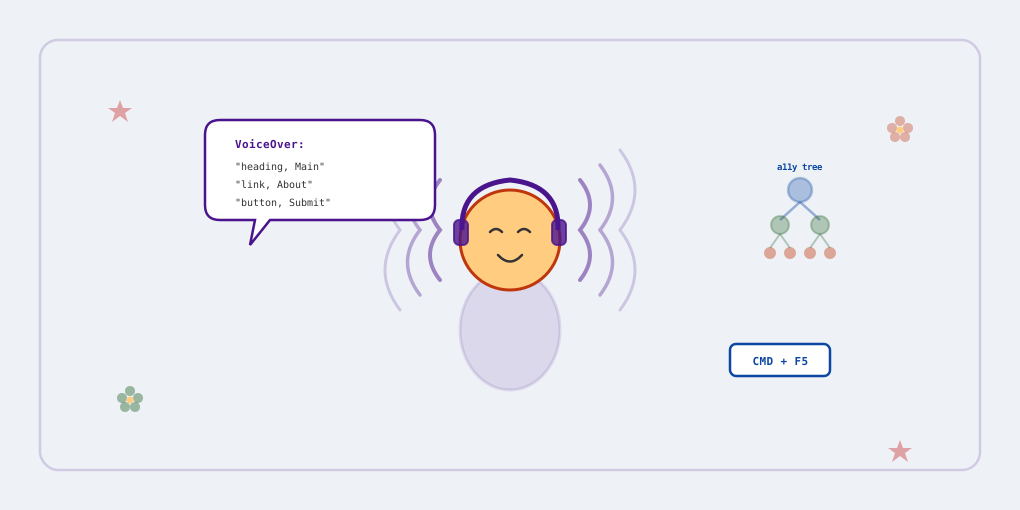
VoiceOver is the native screen reader on macOS — no installation needed.
- Starting:
Cmd + F5or useSystem Settings → Accessibility → VoiceOvertoggle - Settings: VoiceOver Utility
Essential VoiceOver keyboard commands
| Task | Command |
|---|---|
| Start (or stop) VoiceOver | Cmd + F5 |
| VoiceOver activation keys (VO keys) | Control + Option |
| Start reading | VO + A |
| Pause or resume reading | Control |
| Open Rotor | VO + U |
| Activate link | Enter or VO + Space Bar |
| Activate button | Enter or Space Bar or VO + Space Bar |
| Read next/previous item | VO + Right or Left Arrow |
| Repeat last spoken phrase | VO + Z |
| Go to next heading | VO + Cmd + H |
| Go to next table | VO + Cmd + T |
| Go to previous (heading, table, etc.) | VO + Shift + Cmd + H, T, etc. |
| Navigate table cells | VO + Arrow Keys |
| Interact with (enter/exit) groups and objects | VO + Shift + Down/Up Arrow |
VoiceOver uses an “interaction” model — some elements (like toolbars, tables, or groups) require you to “enter” them with VO + Shift + Down Arrow before you can navigate their contents. Use VO + Shift + Up Arrow to exit back out.
For the full reference: VoiceOver Keyboard Shortcuts on a Mac
NVDA (Windows)
NVDA is a free, open-source screen reader for Windows.
- Download: nvaccess.org
- Starting:
Ctrl + Alt + N - Speech viewer: NVDA icon → Tools → Speech viewer (useful for seeing what NVDA announces)
Essential NVDA keyboard commands
The NVDA modifier key is Insert by default (can be changed to Caps Lock in settings).
| Task | Command |
|---|---|
| Start NVDA | Ctrl + Alt + N |
| Stop NVDA | Insert + Q |
| Start reading | Insert + Down Arrow |
| Pause or resume reading | Control |
| Read next/previous item | Down Arrow / Up Arrow |
| Activate link or button | Enter |
| Next heading | H |
| Next landmark | D |
| Next table | T |
| Navigate table cells | Ctrl + Alt + Arrow Keys |
| Elements list (like VoiceOver’s Rotor) | Insert + F7 |
| Toggle browse/focus mode | Insert + Space |
NVDA has two modes: browse mode (for reading content, single-letter navigation like H for headings) and focus mode (for interacting with form controls). NVDA switches automatically in most cases, but you can toggle manually with Insert + Space.
For the full reference: NVDA Keyboard Shortcuts
What to check
- Enable a screen reader and navigate through the page using only the keyboard.
- As you move through the page, verify:
- Reading order — Is the content announced in a logical sequence?
- Images — Are meaningful images described? Are decorative images hidden from the screen reader?
- Headings — Do headings reflect the page structure? Are any levels skipped?
- Form fields — Does each input have a label that is announced?
- Interactive states — Are states like “expanded,” “pressed,” “checked,” or “selected” announced when they change?
- Dynamic content — Are updates (toasts, error messages, loading states) announced via live regions?
- Links — Do link texts make sense out of context? (No “click here” or “read more” without context)
Quick structure audit with the Rotor
The VoiceOver Rotor (VO + U) and NVDA Elements List (Insert + F7) give you a quick overview of the page structure:
- Check Headings — verify the hierarchy is correct and nothing is skipped
- Check Landmarks — verify main regions (
banner,navigation,main,contentinfo) - Check Links — confirm all meaningful links have descriptive names
This is a fast way to spot missing headings, broken landmark regions, or links with generic names.
TalkBack (Android) testing will be covered in a separate mobile testing guide (coming soon).
Zoom and screen magnification
Users with low vision often zoom in to 200% or more. WCAG requires that content remains usable at these levels.
- WCAG 1.4.4 Resize Text — content must be readable at 200% zoom
- WCAG 1.4.10 Reflow — content must reflow into a single column at 400% zoom (no horizontal scrolling)
How to test
- Browser zoom to 200% —
Cmd + +(macOS) orCtrl + +(Windows). Check that no text is cut off, no elements overlap, and all functionality is still available. - Reflow at 400% — open DevTools responsive mode and set the viewport to 320px wide (this simulates 400% zoom on a 1280px screen). Verify there is no horizontal scrollbar and all content is reachable by scrolling vertically.
What to look for
- Text is not truncated or hidden behind other elements
- Interactive elements are still reachable and usable
- No horizontal scrolling appears (except for data tables, maps, or diagrams)
- Layout adapts without loss of content or functionality
High contrast and forced colors
Some users rely on high contrast modes that override your CSS colors. Content and UI must remain visible and functional.
How to test
- Windows —
Settings → Accessibility → Contrast themesand select a high contrast theme. Or pressLeft Alt + Left Shift + Print Screento toggle quickly. - macOS —
System Settings → Accessibility → Display → Increase contrast - DevTools — In Chrome, open DevTools → Rendering panel → “Emulate CSS media feature
prefers-contrast” → set tomore - Forced colors — In Chrome DevTools → Rendering → “Emulate CSS media feature
forced-colors” → set toactive
What to look for
- Focus indicators are still visible (borders, outlines)
- Icons and SVGs are not invisible (they may lose their fill/stroke colors)
- Custom-styled buttons and inputs remain distinguishable
- Information conveyed by color alone is still accessible (use borders, text labels, or patterns as well)
- CSS that uses
@media (forced-colors: active)provides fallbacks where needed
Reduced motion
Some users experience discomfort, dizziness, or seizures from animations. WCAG requires that motion can be disabled.
- WCAG 2.3.1 Three Flashes or Below Threshold — no content flashes more than 3 times per second
- WCAG 2.2.2 Pause, Stop, Hide — auto-playing content can be paused, stopped, or hidden
How to test
- macOS —
System Settings → Accessibility → Display → Reduce motion - Windows —
Settings → Accessibility → Visual effects → Animation effects → Off - DevTools — In Chrome, open DevTools → Rendering panel → “Emulate CSS media feature
prefers-reduced-motion” → set toreduce
What to look for
- Animations are reduced or removed when
prefers-reduced-motion: reduceis active - Carousels and auto-playing content do not auto-advance
- Page transitions are instant or very short
- No content flashes more than 3 times per second (regardless of motion preference)
- Essential motion (like a progress bar filling) is still allowed — only decorative or non-essential animation should be removed
Voice Control quick tip: Label in Name
Voice Control (macOS, iOS, Android) lets users interact by speaking the visible text of buttons and links — e.g., “click Search”. This breaks when the accessible name doesn’t match what’s on screen.
- WCAG 2.5.3 Label in Name — the accessible name must contain the visible text label
For example, if a button visually says Search but has aria-label="Find on the website", a Voice Control user saying “click Search” will get no response — the accessible name doesn’t include the word “Search.”
Rule of thumb: if an element already has a visible text label, either start aria-label with that same text or don’t use aria-label at all. Let the visible text be the accessible name.
<!-- Bad: visible label says "Search" but accessible name is different -->
<button aria-label="Find on the website">Search</button>

<!-- Good: no aria-label, visible text is the accessible name -->
<button>Search</button>

<!-- Good: aria-label starts with the visible text -->
<button aria-label="Search products">Search</button>
A full Voice Control testing guide will be covered in a separate post.
See also: Video accessibility requirements