Make Your Videos Accessible
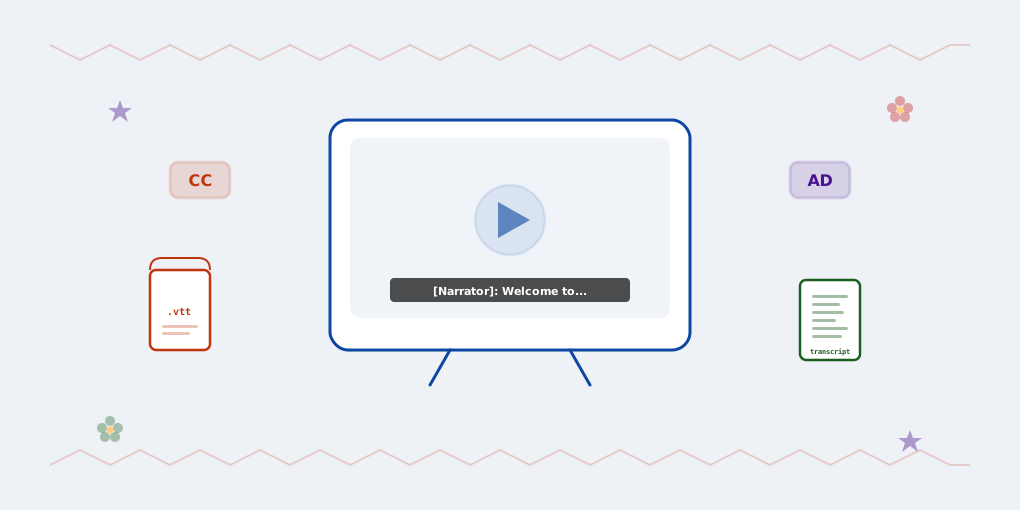
Here’s everything you need to make your video accessible — from captions to transcripts.
If you need a reminder what accessibility levels A, AA, and AAA mean, check the FAQ section first: What do A, AA, AAA mean?
Provide captions (A)
Ask the question: Does the video have speech or other audio that is needed to understand the content? If yes, you need captions. (WCAG 1.2.2)
You’ll need a properly formatted WebVTT (Web Video Text Tracks) file (.vtt).

How to add captions
Add a <track> element with kind="captions" and a language tag:
<video controls>
  <source src="video.mp4" type="video/mp4">
  <track src="captions_en.vtt" kind="captions" srclang="en" label="English" default>
</video>
A basic captions_en.vtt file looks like this:
WEBVTT

00:00:01.000 --> 00:00:04.000
[Narrator]: Welcome to the tutorial.

00:00:05.500 --> 00:00:09.000
Today we'll learn how to make
video content accessible.

00:00:10.000 --> 00:00:13.500
[background music]The file starts with WEBVTT, followed by caption cues — each with a timecode range and the text to display. Use square brackets for non-speech sounds like [background music] or speaker identification like [Narrator].
Provide alternatives (A)
Alternatives for audio-only and video-only contentAsk the question: Is your media audio-only (e.g., a podcast) or video-only (e.g., a silent tutorial with background music)? (WCAG 1.2.1)
- Audio-only (e.g., a podcast, voice recording) — provide a text transcript of everything that is spoken and any meaningful sounds
- Video-only (e.g., a tutorial with no narration) — provide a text alternative that describes the visual content, OR an audio description track that narrates what’s shown
In both cases, the alternative must be equivalent — a user who can’t hear the audio or see the video should get the same information.
Video-only example
Imagine a video showing how to set up an aquarium — no narration, just background music and visual steps. The text alternative must describe each step in enough detail: what equipment to place, where to position it, how much water to add. A vague summary like “This video shows how to set up an aquarium” is not enough.
Place the text near the video and use aria-describedby to link them — screen readers will announce that a description is available. A clear heading on the text block also helps users find it via heading navigation:
<video controls aria-describedby="aquarium-setup-steps">
  <source src="aquarium-setup.mp4" type="video/mp4">
  <track src="captions_en.vtt" kind="captions" srclang="en" label="English">
</video>

<div id="aquarium-setup-steps">
  <h3>Step-by-step aquarium setup</h3>
  <ol>
    <li>Rinse the gravel under running water and spread it evenly across the tank bottom.</li>
    <li>Place the filter and heater against the back wall, leaving space between them.</li>
    <li>Fill the tank slowly with dechlorinated water to avoid disturbing the gravel.</li>
  </ol>
</div>
For longer descriptions, aria-details is a more semantically precise alternative to aria-describedby — it signals a detailed description rather than a brief summary. Browser support is growing but not yet universal.
Even if the audio isn’t meaningful, it’s still good practice to provide a captions track with [background music] — so users don’t think you forgot captions. See What if my video has only background music?
Add audio descriptions (A, AA)
Ask the question: Does the video have visual information that is needed to understand the content? (WCAG 1.2.3, WCAG 1.2.5)
If your video shows key visuals (e.g., actions, diagrams, on-screen text) that aren’t described in the narration or dialogue, you must provide audio description. It describes the visual information needed to understand the content, including text displayed in the video.
At Level A (WCAG 1.2.3), you can choose between audio description or a full text alternative that describes everything in the video. At Level AA (WCAG 1.2.5), audio description is specifically required — a text alternative alone is not enough. If your video has static visuals (e.g., a talking head against an unchanging background), a text alternative may be sufficient even at AA — see Technique G203 (W3C).
What does audio description sound like? During a pause in dialogue, a separate narrator’s voice describes the visuals — for example: “The presenter points to a bar chart. The tallest bar is labeled ‘Dark mode’ at 60%.”
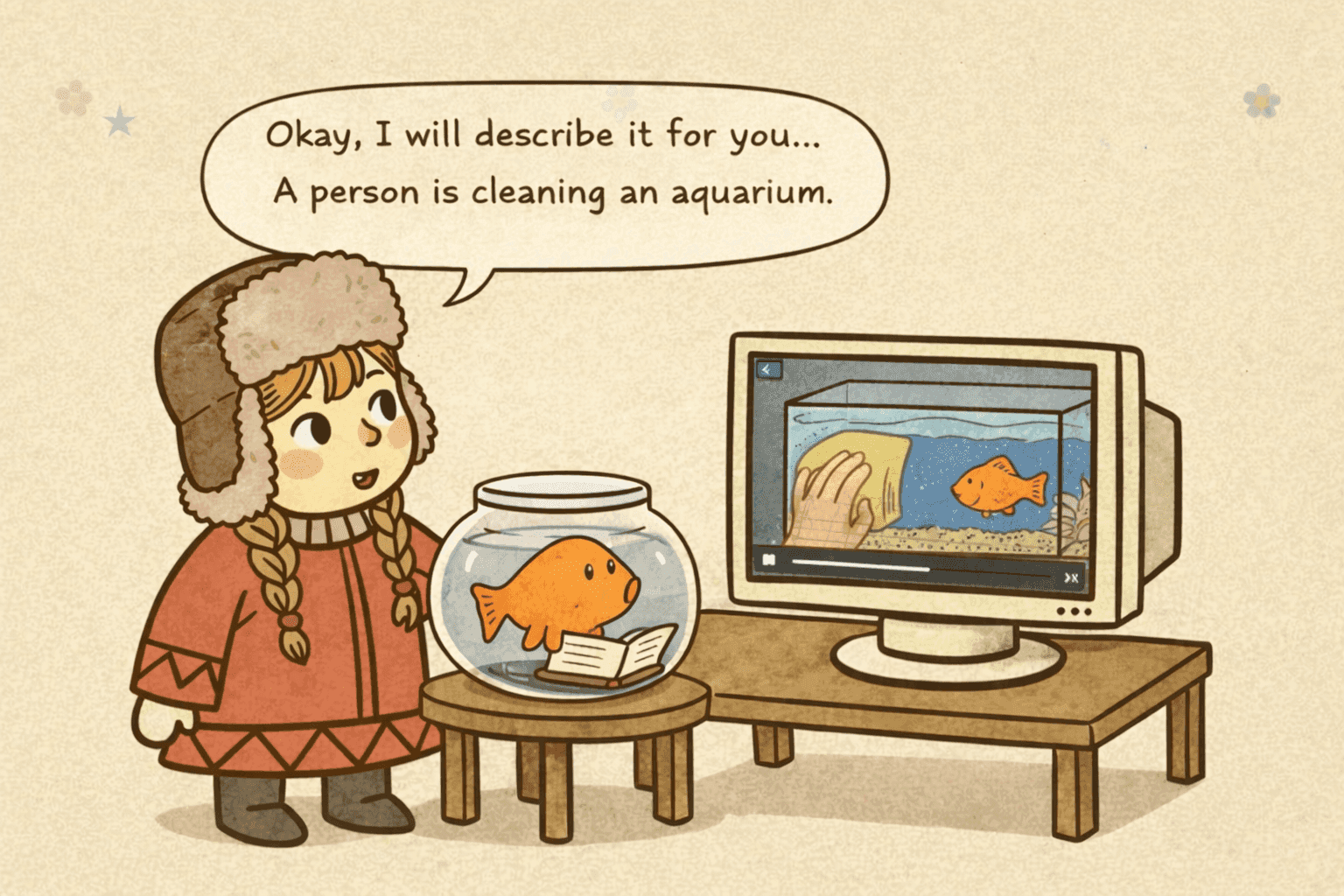
The best way to handle description is often not to need it at all — integrate all visual information into the main audio. This is called “integrated description”.
For example, instead of a narrator saying “As you can see here…” while showing a chart, the narrator would say “This bar chart shows that 60% of users prefer dark mode.” — the visual information is already in the spoken words, so no separate audio description is needed.
How to provide descriptions
- Integrate description into the main audio content (recommended)
- OR provide a second audio track (
kind="descriptions") or a separate video version with narration included - Add a way for users to select or toggle the audio description
<track src="descriptions_en.vtt" kind="descriptions" srclang="en" label="Audio Description">Note that browsers don’t expose this track via controls, so you’ll need to build a custom toggle UI or provide a narrated version of the video.
Provide custom controls (A)
Ask the question: Are you building a custom video player on top of the native <video> element? (WCAG 2.1.1)
If you are using a ready-to-use video player library (e.g., Video.js, Plyr, or a platform like YouTube/Vimeo embeds), it likely already handles most of these concerns.
The HTML5 <video> element supports basic accessibility, including keyboard access to controls and support for captions/subtitles.

However, it has limitations:
- Inconsistent appearance across different browsers and operating systems
- No custom focus styles
- No transcript support or toggling of audio descriptions via the interface
Building accessible controls
If you need more control, replace the default controls with your own <button> elements and JavaScript:
- Provide keyboard support (Understanding Keyboard Accessible) — see also Test Keyboard Navigation
- Make the keyboard focus indicator visible (Understanding Focus Visible)
- Provide clear labels (Understanding Labels or Instructions)
- Have sufficient contrast between colors for text, controls, and backgrounds (Understanding Contrast)
For recommendations on building custom video players: Media Players (W3C WAI)
Allow stop of auto-playing (A)
Ask the question: Does your video play automatically? (WCAG 2.2.2)
- Avoid autoplay whenever possible
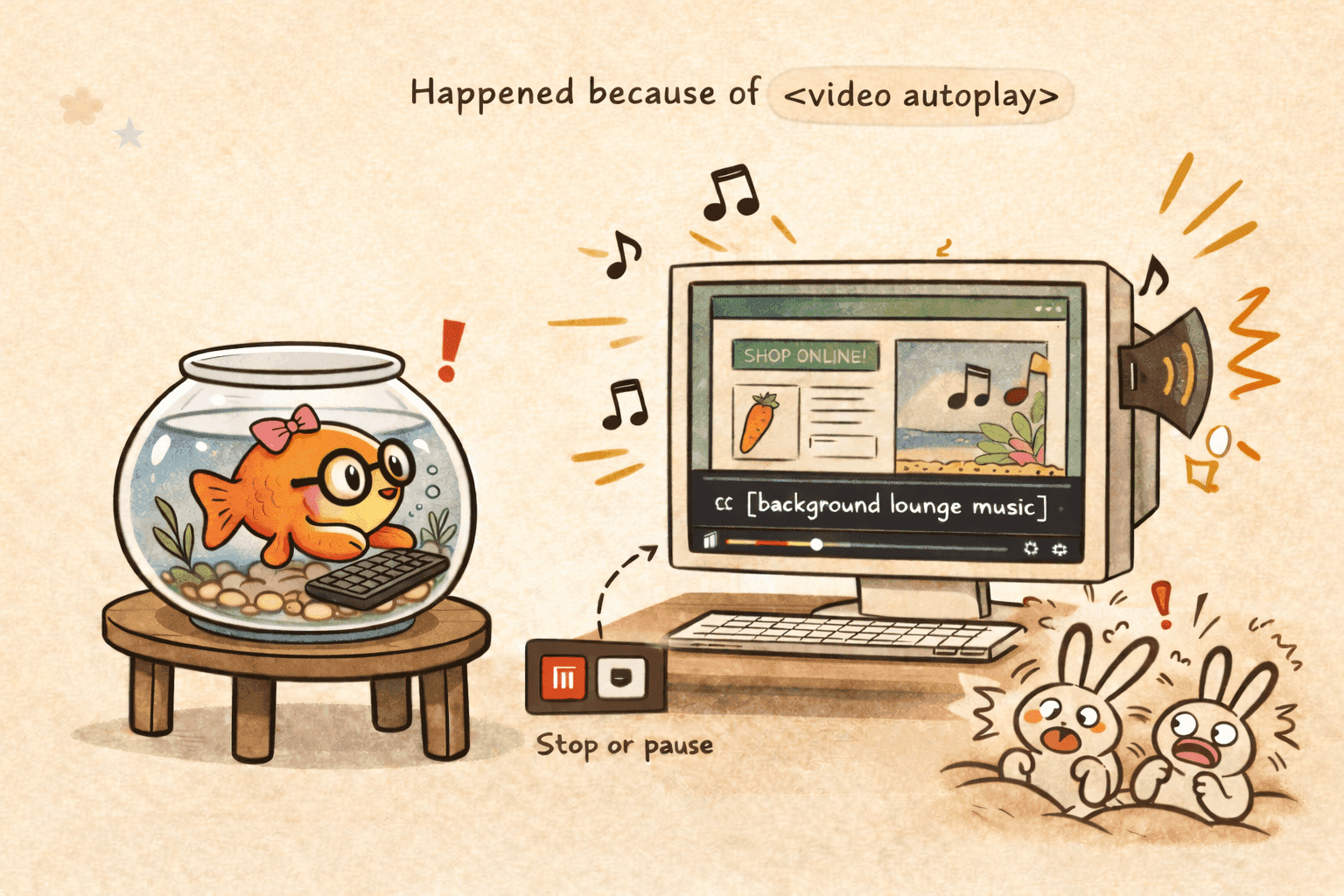
- If autoplay is required, provide controls to stop or pause the video
- If using muted autoplay (e.g., a hero background video), users must still be able to pause it. Also consider
prefers-reduced-motion— some users find any motion distracting or disorienting
Provide a transcript (AAA)
Ask the question: Do you want to provide the best possible access to your video content? (WCAG 1.2.8)
Transcripts for audio-only content (e.g., podcasts) are required at Level A under WCAG 1.2.1. This section is about transcripts for synchronized media (video with audio) — that’s Level AAA.
Even if you already have captions, a separate transcript adds value:
- Captions enable people who are Deaf or hard of hearing to watch the video and read along at the same time
- Transcripts provide access to people who are Deaf-blind and use braille, and are also used by people without disabilities
How to add a transcript
Include a full text transcript of the video content. Link to it near the video, display it in a toggleable section, or just include it in the page content below the video.
The simplest approach is the native <details> element — it handles expand/collapse and accessibility without any JavaScript:
<details>
  <summary>Read transcript</summary>
  <p>[Narrator]: Welcome to the tutorial...</p>
  <p>Today we'll learn how to make video content accessible.</p>
</details>
Here’s how it works — try clicking:
Read transcript
[Narrator]: Welcome to the tutorial. Today we’ll learn how to make video content accessible.
[Narrator]: First, let’s add captions to our video using a WebVTT file.
[background music]
FAQ
What if my video has only background music?
Background music alone doesn’t require full captions — but you should still let users know, so they don’t think you forgot to add them.
![A fish with glasses watches an aquarium video with no dialog, just background music — the caption track shows "[background lounge music]" to let viewers know no captions or description are needed](/_astro/no_dialog_video_illustration_mini.DhMa9_UI_Z2b1Mfq.png)
You can:
- Provide a captions file with only the appropriate indication, such as
[background music] - Provide the information in text with the video, such as: “Captions not needed: The only sound in this video is background music”
If the video still conveys information visually (e.g., a tutorial or demonstration), you need a text alternative instead — see Provide alternatives.
Captions vs. Subtitles
These terms are often used interchangeably, but they serve different purposes:
- Captions are intended for viewers who cannot hear the audio. They include not just dialogue but also sound effects, music cues, and speaker identification — e.g.,
[door slams],[upbeat music],[Narrator]:. - Subtitles are intended for viewers who can hear but don’t understand the spoken language. They typically only include dialogue.
For accessibility, you need captions, not just subtitles.
Closed captions vs. Open captions
There are two ways captions can be delivered:
- Closed captions are a separate text track that users can turn on or off. This is the most common approach on the web — using
<track kind="captions">or a player’s built-in caption toggle (the CC button). Closed captions give users control over whether they see the text. - Open captions are burned directly into the video frames. They are always visible and cannot be turned off. This can be useful when you cannot rely on the player supporting text tracks (e.g., social media videos, video you share in .PDF etc.), but it removes user choice and makes the captions impossible to resize or restyle.
For web accessibility, closed captions are preferred because they let users control the display, work with assistive technologies, and can be provided in multiple languages.
What do A, AA, AAA mean?
Each requirement in this article is marked with a WCAG conformance level. Levels are cumulative — to meet Level AA, you must satisfy all A and AA requirements:
- Level A — the bare minimum. Without these, some users simply cannot access the content at all.
- Level AA — the standard most organizations target. Includes all Level A requirements, plus additional ones. This is what most accessibility laws and policies require (e.g., EU’s EN 301 549, US Section 508).
- Level AAA — the highest level. Includes all A and AA requirements, plus additional ones. Not always feasible for all content, but provides the best experience.
See also: